

Image File Too Small? The Smart, Simple, and Powerful Way to Increase Image Size
Learn how to fix the “image file too small” error. Discover smart ways to increase image size and resolution without losing quality using AI and tools.
image for illustrative purpose
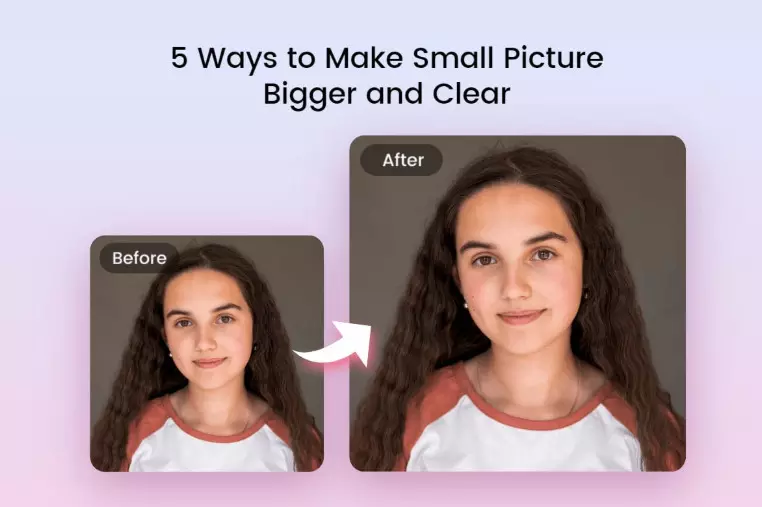
Do you have experience uploading a photo that resulted in an error message that said "image file too small"? The answer to your question is yes because this situation occurs to people who face similar issues. The situation should not cause you any concern. The guide will demonstrate proper methods for increasing image size, enabling you to complete the task without experiencing any emotional or mental difficulties while maintaining image quality.
What Does “Image File Too Small” Really Mean?
We need to establish our understanding first. The message about an image file being too small usually indicates two specific situations.
The file size (KB or MB) is too low.
The image dimensions (width and height)
are too small. Because of this, websites, forms, or apps reject your image. The image fails to comply with the established size requirements in simple terms.
Why Image Size Matters More Than You Think
Image size is not just a technical thing.
Instead, it affects quality, trust, and performance.
For example:
Job portals need clear photos
Websites need sharp images
Social media prefers larger images
So, when your image file is too small, it looks blurry or pixelated. As a result, it feels unprofessional.
Image Size vs Image Dimensions: Know the Difference
You understand this part before you can start to increase the image size.
Image File Size
The measurement uses KB or MB as its units.
The measurement shows how much space the image occupies.
Image Dimensions
The term refers to width and height because it uses the format 800×600 pixels.
Sometimes your image appears large, yet it contains a minimal file size.
The object displays extensive dimensions, yet it shows substandard visual quality.
Common Reasons Why an Image File Is Too Small
Let us examine the typical reasons that lead to this situation.
1. Excessive Compression Caused Image Quality Loss
Compression results in data loss. The image size decreases, but its quality becomes diminished.
2. Screenshot or Thumbnail Used
Screenshots display content at a low resolution. Thumbnails are also tiny by design.
3. User Downloaded Images From Messaging Applications
WhatsApp and similar applications automatically reduce image size. The image file size decreases rapidly because of this process.
The Right Way to Increase Image Size (Without Ruining Quality)
The crucial section of the presentation begins now.
Rule: Never Just “Stretch” the Image
Stretching an image results in a loss of visual clarity.
The quickest method to ruin visual quality is through this process.
The situation requires the application of intelligent approaches.
Method 1: Increase Image Size Using Online Tools
Online tools provide users with a straightforward and rapid solution.
Best Free Tools to Increase Image Size
ResizeFile.com
ImageResizer
Let’s Enhance
Upscale. media
Adobe Express
The tools use advanced technology to enable users to increase their image sizes without risking damage to their original pictures.
The procedure requires you to upload your image.
The user should select dimensions that exceed the original size of their image.
The user needs to export the enhanced image.
The new image file contains a larger size and improved clarity.
Method 2: Increase Image Size Using Editing Software
If you want more control, use software.
Using Photoshop
Open the image
Click Image → Image Size
Increase width and height
Use “Preserve Details”
This method keeps the quality high.
Using Free Alternatives
GIMP
Paint.NET
These tools also help increase the image size correctly.
Method 3: Increase Image File Size by Adjusting Format
The problem occurs because the format does not work properly.
Best Formats for Larger Image Size
PNG (larger, clearer)
TIFF (very high quality)
High-quality JPG (less compression)
The solution should start with you converting JPG files into PNG format.
The method works because it handles the problem that people encounter when their image files do not meet size requirements.
Method 4: Add Controlled Noise (Expert Trick)
You can also increase the file size by adding extra padding or introducing noise into the image. The process of adding small noise to a file results in increased storage requirements while maintaining its original appearance. Designers use this trick often.
The image still looks clean.
The file size expands from natural processes.
The minimum KB requirement of a website needs this function.
How to Increase Image Size for Specific Uses
Different platforms need different image sizes.
For Websites
Use a 1200px width or more
Keep file size under 300KB if possible
For Online Forms
Follow the exact KB or MB rules
Do not over-compress
For Printing
Use 300 DPI
Choose PNG or TIFF
Because of this, always check requirements first.
SEO Tip: Image Size and Website Speed
The following information comes from an expert source. Websites experience slower performance because of larger image files. The quality of visual content becomes damaged when people use excessively small images. The situation requires people to establish an equilibrium.
Proper dimensions
Smart compression.
Descriptive file
Names serve as the required elements that should be used to achieve this goal.
Mistakes to Avoid When Increasing Image Size
Avoid these common errors:
Stretching images blindly
Using low-quality upscalers
Ignoring format choice
Over-sharpening
How to Check If Your Image Size Is Correct
Always double-check.
Right-click the image → Properties.
Look at:
File size
Dimensions
Resolution
If it meets the requirement, you’re good to go.
Why Smart Image Resizing Builds Trust
Clear images feel honest. The presence of blurry images demonstrates a lack of proper attention. Users show better trust in your work when they view your content through sharp visual displays. The correct approach to increasing image size needs to be understood because it establishes its importance.
The solution to fix an image file which has insufficient size becomes possible when you possess the required knowledge. The solution to your problem requires smart tools and expert methods instead of guessing. The process allows you to expand image dimensions while maintaining the original picture quality. You should select the proper format and dimension for each situation. Your images will improve their appearance and correct loading problems while meeting all requirements when you perform this action. The larger and smarter images provide better results than smaller and simpler images.
FAQs
1. Can I increase image size without losing quality?
Yes. Use AI upscalers or proper resizing tools.
2. Why does my image look blurry after resizing?
The image became blurry because it was stretched instead of being improved.
3. What is the best format to increase image size?
PNG is the best format because it maintains high quality and sharpness.
4. Does increasing image size help SEO?
The answer is yes when the process is executed properly, and everything is balanced.
5. What is the safest way to fix “image file too small”?
The solution requires using reliable online resources or buying professional software.